# Änderungswünsche
# Jonas
Allgemein:
Macht es Sinn gleich auf V3 upzudaten?
Styles:
Schriften werden zu kompliziert eingebunden ich erstelle teilweise einfach eine neue komplette palette nur für ein Element. Aus meiner Sicht sollten es einfachere Mixins sein oder sonst halt nur mit Variablen arbeiten.
Dann ich bin sehr fan von SFC von Vue.js ich style eigentlich immer alles dort drin. Gerade bei den Buttons haben wir aber einen Konflikt weil die jetzt in einem Mixin gestyled sind. wie seht ihr das? ich hätte dann lieber eine Komponente die wir immer einbauen anstatt ein button html element.
Allgemein bei den Mixins ich brauche sehr wenige die jetzt eingebaut sind. Aktuell sind bei mir so z-index, fluid(bin ich persönlich sehr fan), und das media-query.
Elements find ich gut bis auf button und die form fields die würde ich als eigene vue Komponente bauen und alle styles dort drin.
Components:
Die Komponentenstruktur ist meines Erachtens eher für grössere Projekte als für kleinere ausgelegt was es aus meiner sicht eher verkompliziert. Ich würde lieber denn anderen weg gehen eher weniger und falls notwendig dazubauen. Gerade zum beispiel der Layout ordner innerhalb compounds ist für mich nicht nötig Nuxt bringt ja schon ein Layout ordner mit. Da wär ich mal dafüur das wir vielleicht nochmals zusammen darüber sprechen könnten ob ihr das auch so seht.
Eine gute Implementation für Responsive Image wäre geil ich bekomm das nie gut hin.
Config:
Ich bin gar kein Fan von Config files per Environnment wie wir sie jetzt haben. Folgendes Problem gewisse Variablen müssen beim Builden vorhanden sein und die nimmt Nuxt irgendwie nur von .env file. Führte bei ASA zu grossen Problemen. Mein Ansatz wäre folgendes. Wir arbeiten nur noch mit .env files d.h. jeder Entwickler muss sich ein eigenes erstellen beim Projekt aufsetzen. Zum builden werden die Variablen in die Pipeline reingeschrieben. Dort kann man ja unter Deployment die Variablen setzen und dann werden gleich die richtigen Variablen für Staging und Prod genommen. Dann wird von der Pipeline auch gleich das .env auf den Server kopiert so ist es immer aktuell und man muss es nicht manuell anpassen. Damit es einfacher ist um ein Projekt aufzusetzen sollte ein .env.defaults wo nur die Variablenamen drinstehen gepushed werden.
Plugins:
Für das Component plugin könnte man glaub ich das hier (opens new window) einbauen?
# Installation
tbc.
# Introduction
# What is the Nuxt Starter?
The Nuxt Starter is frontend boilerplate for our Nuxt projects. It consists of a basic set of commonly used components, tools and libraries, as well a Webpack configuration. The goal is the have a starting point and a mandatory structure & conventions for every single Nuxt Project at Nueva, that can be easily customised and extended without having to write the same basic components over and over again. It provides a solid structure and a set of tools to improve code consistency and quality of the final project.
# What belongs to the Nuxt Starter?
- Generalised functional low-level Vue-Components with basic styling, that are applicable to many projects
- Useful Vue filters, mixins and directives that improve the workflow or quality of every individual project
- Useful Sass Definitions (Vars, Mixins, Functions)
- Generally everything that we agree on that improves the developer experience and the quality of the projects and should speed-up development processes.
# What does NOT belong to the Nuxt Starter?
- Project-specific components/libraries, etc.
- Is it something like swiper.js, flickity.js, vue.js? → Might be something for the Pattern Library (Manu & Janson agree)
# What is the difference between the Pattern Library and the Nuxt Starter?
The Nuxt Starter contains all the important components for a very basic website and all the configuration to work with.
The Pattern Library contains useful script libraries that cover more complex functionality, that might not be applicable to most projects. (e.g. Datepicker, etc.)
An approach is to fill the library only with pure functional useful patterns that are often needed to avoid writing them over and over again. This approach should be verified by developing a medium complex live example component regarding to feasibility and time exposure.
# Getting Started
tbc.
# Project Directory
Globale Struktur ohne Subfolder abbilden und in der Übersicht kurz was zu den Foldern sagen.
nuxt-starter/
    /assets/
        /images/
        /styles/
    /components/
    /config/
    /utils/
        /directives/
            inViewPort.js (vue-in-viewport-directive)
            lazyLoading.directive.js
        /filters/
            absolute-path.js
            transformImage.js
            responsiveSizes.js ?
        /mixins/
            modernizer.js
            seo.js
    /helper/
    /i18n/
    /layouts/
        default.vue
        error.vue
    /middleware/
    /pages/
        Home
        _slug.vue (Generic Detail, Generic Overview?)
        _.vue (Fallback)
        404 Page
        Maintenance Page
        /blog/
            index.vue
            _slug.vue
    /pages-store ?
    /plugins/
        components.js
        directives.js
        filters.js
        mixins.js
        modernizr.js
        isMobile.js
    /servermiddleware/
        formEndpoint.js
        formHandler.js -> config?
    /static/
        favicon
    /store/
        index.js
        global.js
        settings.js
        /settings/
            actions.js
            status.js
            getter.js
            mutations.js
    .editorconfig
    .eslintignore
    .eslintrc.js
    .gitignore
    .modernizrrc
    .prettierrc
    nuxt.config.js
    package.json
    README.md
    app.html
2
3
4
5
6
7
8
9
10
11
12
13
14
15
16
17
18
19
20
21
22
23
24
25
26
27
28
29
30
31
32
33
34
35
36
37
38
39
40
41
42
43
44
45
46
47
48
49
50
51
52
53
54
55
56
57
58
59
60
61
62
63
64
# Project Config
tbc.
# Components
Please note that not all components are implemented yet. Check Development Status
This document defines structure and usage rules for Vue.js components. The goal is to have a basic set up components that are already defined in Storyblok.
TODO: refine, link to storyblok
# Directory Structure
The components folder consists of three subfolders (/base, /compounds and /debug) following a custom "atomic" approach.
The /debug folder is just for debug components and should not contain anything relevant for production. All other components are devided into two main categories, base and compounds.
# Why a custom atomic approach?
Vue.js has the idea of components in its core, so it makes sense to break down a design into small, reusable parts. Strict "Atomic Design" structuring is often to granular for our daily use cases and the naming might be confusing in a Nuxt.js context. Therefore a custom approach was chosen.
# Components directory
nuxt-starter/
    /components/
        /base/
            /common/
            /forms/
        /compounds/
            /accessibility/
            /content/
            /layout/
            /site/
            /ui/
        /debug/
2
3
4
5
6
7
8
9
10
11
12
# Base Components
Base components are reused very often and are often part of other components, they barely stand alone. They are subdevided into common and forms components. All components inside the base folder and its subfolders must be prefixed with "Base" (e.g. BaseIcon).
# Directory Structure
Naming Convention
Use prefix Base on all components inside this folder and sub-folders.
/components/
    /base/
        /common/
        /forms/
2
3
4
# Common Components
Common components are very components that are mostly very small components that are either custom implementations of HTML-Elements (e.g. BaseButton, BaseLink) or components that are consumed by other components (e.g. BaseLink).
- BaseButton - Standard HTML Button, can be used like one.
- BaseIcon - Gets a SVG-icon from the sprite sheet.
- BaseLink - Regular HTML link, or nuxt-link if internal.
- BaseLoader - Visual loader for components, can be controlled by a single prop
loading. - BaseSiteLoader - Fullscreen loader for pages, can be used for
loadingproperty in nuxt.config.
# Form Components
Form components are custom implementations of HTML form elements with label and error state, ready to be used.
- BaseAlert - Visual feedback for users about form status. Usually shown after form submission. Three possible states: success, warning, error.
- BaseCaptcha (BACKLOG) - reCaptcha
- BaseDateInput (BACKLOG) - Date picker, single or with range. With label and error.
- BaseInput - Custom input with label and error.
- BaseNumberInput (BACKLOG) - Number input with and without stepper. With label and error.
- BaseOptionsInput - Custom input radio/checkbox (single/multiple) with label and error.
- BaseRangeSlider (BACKLOG) - Value and range slider. With label and error.
- BaseSelect - Custom select (single and multiselect). With label and error.
- BaseTextarea - Custom textarea with label and error.
# Compound Components
This is where most components will find their place. The compounds folder is subdevided into 5 sub-categories. Components must be prefixed with the name of the sub-category (e.g. LayoutSection, ContentImage).
# Directory Structure
/components/
    /compounds/
        /accessibility/
        /content/
        /layout/
        /site/
        /ui/
2
3
4
5
6
7
# Accessibility Components
Components that improve accessibility of the site.
Naming Convention
Use prefix "Accessibility" on all components inside this folder.
- AccessibilityFlyingFocus - Flying focus highlighter.
- AccessibilitySkiplinks - Keyboard navigatable links to jump to important parts of the site. (e.g. Navigation, Main Content, Sitemap, etc.)
# Content Components
Content components are containers for content. Each component is also in Storyblok. Prefix: "Content".
Naming Convention
Use prefix "Content" on all components inside this folder.
- ContentBreadcrumbs (BACKLOG) - Breadcrumbs based on the router.
- ContentEmbed - Iframes, with iframe-resizer. (Also for YouTube and Vimeo)
- ContentImage - Responsive Image
- ContentKeyValueList - Key Value List (Definition List)
- ContentLinkList - List with links
- ContentPageLead - Lead text for any page.
- ContentPageTitle - Page title for any page.
- ContentQuote - Quote with caption.
- ContentRichtext - Richtext, renders Storyblok richtext and markdown.
- ContentSlider (BACKLOG) - A basic multi-purpose slider based on swiper.js.
- ContentTable - A basic table, renders Storyblok component (plugin).
- ContentTeaser - A simple multi-purpose teaser with image, title, content and link.
- ContentVideo - Video component for self-hosted videos.
# Layout Components
Layout components are containers used for either visualy structuring (LayoutGrid), semantic structuring (LayoutSection) or represent entry types from Storyblok (LayoutPage). Each component is also in Storyblok. Prefix: "Layout".
Naming Convention
Use prefix "Layout" on all components inside this folder.
- LayoutGrid - Simple grid with 2-4 columns and predefined wrapping points.
- LayoutPage - LayoutPage component for Storyblok LayoutPage component.
- LayoutSection - Semantic section with hideable headline.
- LayoutSubSection - Semantic section with hideable headline.
# Site Components
Site components are components that you can find on almost every page, they are mostly used inside the nuxt layout components (nuxt-starter/layouts/). The content for these can be defined in the Settings component of Storyblok and are avaiable through the global store. Prefix: "Site".
Naming Convention
Use prefix "Site" on all components inside this folder.
- SiteFooter - Footer with copyright, navigation and social links.
- SiteHeader - Header with SiteLogo and SiteNavigation.
- SiteLogo - Logo with link to homepage.
- SiteNavigation - Basic Navigation for inside the SiteHeader component.
- SiteSearch (BACKLOG) - Search field with preview.
- SiteSocialLinks - Social links with icons.
# Ui Components
Components the user has to interact with. Prefix: "Ui".
Naming Convention
Use prefix "Ui" (not UI) on all components inside this folder.
Case Sensitivity
Please make sure you don't use uppercase "UI" for the prefix. This would result in the DOM template element being <u-i-notification> instead of the correct <ui-notification>.
- UiAccordion - Single accordion, used inside UiAccordionGroup.
- UiAccordionGroup - Group of UiAccordions, configure if only one accordion can be open at a time.
- UiAutocomplete (BACKLOG) - Autocomplete input field, with suggestions.
- UiCookieConsent - Cookie consent, gets saved to localstorage and store. State should disable trackers.
- UiFlyout - Flyout
- UiFlyoutTrigger - Flyout trigger
- UiLanguageSwitch - Switch for languages.
- UiLoadMore - Load next page of content into a container.
- UiNotification - Multi-purpose fixed notification to show important information to the user. Can be closed and save close.
- UiPagination - Pagination
- UiScrollToTop - Fixed button for scrolling to the top of the page.
- UiTabs (BACKLOG) - Tabs
- UiTooltip (BACKLOG) - Show additional information to the user on focus and hover.
# Debug Components
# Components Development Status
# Status Glossary
- 🔴 - backlog
- ⚪️ - open
- 🔨 - in progress -> Add Developer
- 😎 - in review -> Add Reviewer
- ✅ - done
# Base Components
# Common Components
| Component | Developer | Reviewer | Status | Note |
|---|---|---|---|---|
| BaseButton | JC | MZ | 🔨 | TODO Reviewed. Open Issue: Icon implementation.
|
| BaseIcon | JC | MZ | 🔨 | TODO
|
| BaseLink | JC | ? | 😎 | TODO
|
| BaseLoader | JC | ? | 🔨 | TODO
|
| BaseSiteLoader | JC | ? | 😎 |
# Form Components
| Component | Developer | Reviewer | Status | Note |
|---|---|---|---|---|
| BaseAlert | JC | ? | 😎 | |
| BaseCaptcha | ? | ? | 🔴 | reCaptcha |
| BaseDateInput | ? | ? | 🔴 | |
| BaseInput | JC | ? | 🔨 | |
| BaseNumberInput | ? | ? | 🔴 | With and without stepper |
| BaseOptionsInput | JC | ? | 🔨 | Radio and Checkbox, single/multi |
| BaseRangeSlider | ? | ? | 🔴 | Single/Range |
| BaseSelect | JC | ? | 🔨 | Single/Multi -> Flyout or Standard HTML? |
| BaseTextarea | JC | ? | 🔨 |
# Compound Components
# Accessibility Components
| Component | Developer | Reviewer | Status | Note |
|---|---|---|---|---|
| AccessibilityFlyingFocus | JC | ? | 😎 | |
| AccessibilitySkiplinks | JC | ? | 😎 | TODO
|
# Content Components
| Component | Developer | Reviewer | Status | Note |
|---|---|---|---|---|
| ContentBreadcrumbs | ? | ? | 🔴 | Backlink and Router based |
| ContentEmbed | JC | ? | 🔨 | add iframeresizer |
| ContentImage | JC | ? | 🔨 | Responsive Images |
| ContentKeyValueList | JC | ? | 😎 | |
| ContentLinkList | JC | ? | 😎 | |
| ContentPageLead | JC | ? | 😎 | |
| ContentPageTitle | JC | ? | 😎 | |
| ContentQuote | JC | ? | 😎 | |
| ContentRichtext | JC | ? | 😎 | |
| ContentSlider | ? | ? | 🔴 | Based on swiper.js |
| ContentTable | JC | ? | 😎 | |
| ContentTeaser | JC | ? | 😎 | TODO
|
| ContentVideo | JC | ? | 🔨 |
# Layout Components
| Component | Developer | Reviewer | Status | Note |
|---|---|---|---|---|
| LayoutGrid | JC | ? | 🔨 | |
| LayoutPage | JC | ? | 😎 | TODO
|
| LayoutSection | JC | ? | 😎 | TODO
|
| LayoutSubSection | JC | ? | 😎 | TODO
|
# Site Components
| Component | Developer | Reviewer | Status | Note |
|---|---|---|---|---|
| SiteFooter | JC | ? | 🔨 | |
| SiteHeader | JC | ? | 🔨 | |
| SiteLogo | JC | ? | 😎 | TODO
|
| SiteNavigation | JC | ? | 🔨 | |
| SiteSearch | ? | ? | 🔴 | |
| SiteSocialLinks | JC | ? | 🔨 |
# Ui Components
| Component | Developer | Reviewer | Status | Note |
|---|---|---|---|---|
| UiAccordion | JC | ? | 🔨 | |
| UiAccordionGroup | JC | ? | 🔨 | |
| UiAutocomplete | ? | ? | 🔴 | |
| UiCookieConsent | JC | ? | 🔨 | |
| UiFlyout | JC | ? | 🔨 | |
| UiFlyoutTrigger | JC | ? | 🔨 | |
| UiLanguageSwitch | JC | ? | ⚪️ | |
| UiLoadMore | JC | ? | ⚪️ | |
| UiNotification | JC | ? | 🔨 | |
| UiPagination | JC | ? | ⚪️ | |
| UiScrollToTop | JC | ? | 😎 | TODO
|
| UiTabs | ? | ? | 🔴 | |
| UiTooltip | ? | ? | 🔴 |
# Debug Components
| Component | Developer | Reviewer | Status | Note |
|---|---|---|---|---|
| Debug | MZ | ? | 🔨 |
# Styles
This chapter is about structuring styles on the level of file/folder and it also defines formatting and code style rules for CSS/SASS and HTML. It aims at improving collaboration, code quality, and enabling supporting infrastructure.
# Directory Structure
The styles folder consists of 6 subfolders following the paradigm of Inverted Triangle CSS (ITCSS). This is the place where you can define your global settings and styles that need to be available app-wide.
nuxt-starter/
    /assets/
        /styles/
            /1_settings/
            /2_tools/
            /3_generic/
            /4_vendors/
            /5_elements/
            /6_objects/
            /7_utils/
            styles.scss
2
3
4
5
6
7
8
9
10
11
# Why ITCSS?
Because it works! 😃 It works for large-scale projects and for small projects as well. It provides a consistent, comprehensible, scalable and maintainable way to write CSS. It organizes CSS Files to deal with CSS specifics like global namespace, cascade and selectors specificity and it divides sass only definitions from definitions that generate real CSS code. The triangle also shows how styles represented by selectors are ordered in the resulting CSS: from generic styles to explicit ones, from low-specificity selectors to more specific ones.
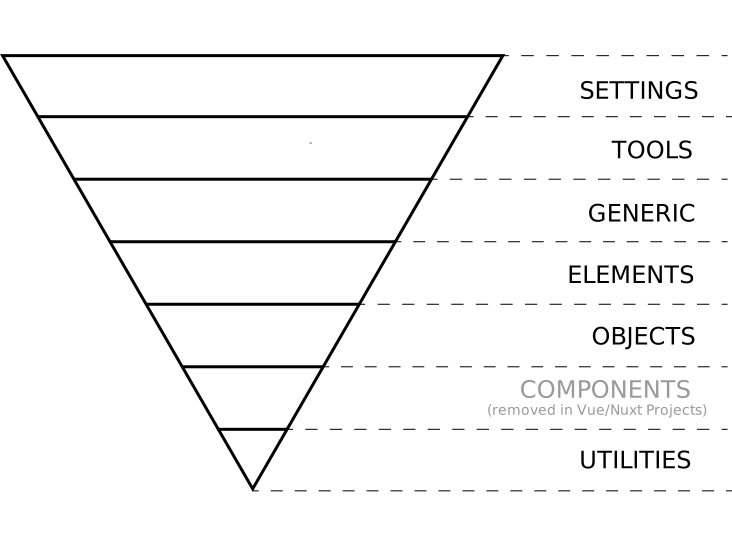
# What are the layers?
- Settings – used with preprocessors and contain font, colors definitions, etc.
- Tools – globally used mixins and functions. It’s important not to output any CSS in the first 2 layers.
- Generic – reset and/or normalize styles, box-sizing definition, etc. This is the first layer which generates actual CSS.
- Elements – styling for bare HTML elements (like H1, A, etc.). These come with default styling from the browser so we can redefine them here.
- Objects – class-based selectors which define undecorated design patterns, for example transition classes.
Components – specific UI components.This layer is removed in Vue/Nuxt apps in favor of writing Vue Single File Components.- Utilities – utilities and helper classes with ability to override anything which goes before in the triangle, eg. hide helper class
# Optional CSS Framework
With this Nuxt Starter you can choose using either a CSS Grid Framework or the built-in custom grid. If you want to choose a grid framework - the Nuxt Starter come with Foundation by default. There are plans to implement Bootstrap in the future as well.
# 01 Settings
This is the level of writing only global Sass variables. This will/should not produce any CSS of course.
# Directory Structure
/1_settings/
   /_/
        _path.settings.scss
        /breakpoints/
            _breakpoints/breakpoints-sizes.settings.scss
            _breakpoints/breakpoints-orientation.settings.scss
        _typo.settings.scss
        _color.settings.scss
        _grid.settings.scss
        _button.settings.scss
        _form.settings.scss
        _iconfont.settings.scss //if you are using iconfonts
        _layout.settings.scss //optional
        _decoration.settings.scss //optional
        _ease.settings.scss //optional

    _app.settings.scss
    _foundation.settings.scss
    _settings.scss
2
3
4
5
6
7
8
9
10
11
12
13
14
15
16
17
18
19
#
# Naming
The underlying concept of naming SASS variables is:
$app-[filename]-[cssproperty-pseudoclass-state-element-semantics]

//e.g. typo.settings.scss
$app-typo-text-selection-color : $app-color-primary;
2
3
4
- Where
appis the prefix to determine if the variable is global and belongs to our app (not third-party settings). - Where
[filename]is the name of the file in this settings folder where the variable is defined.
# » color.settings
App-wide color palette. e.g $app-color-primary: mediumpurple;
# » typo.settings
App-wide typo definitions and configurations for native elements, e.g. Body, H1-H6.
The Typo Palette: This is where you can define different sets(formats) of typo definitions for each breakpoint available in your breakpoint settings.
Please make sure, that the defined breakpoint names are available in your breakpoint settings. Otherwise it will throw a warning, that this query doesn't exist.
$app-typo-palette: (
  //breakpoint
  small-up: (
    //format
    sm : (
      //definition
      font-size: 16px,
      line-height: 25px
    ),
    //format
    lg: (
      //definition
      font-size: 50px,
      line-height: 55px
    )
  ),
  //breakpoint
  large-up: (
    //format
    sm : (
      //definition
      font-size: 10px,
      line-height: 15px
    ),
    //format
    lg: (
      //definition
      font-size: 150px,
      line-height: 155px
    )
  )
)
2
3
4
5
6
7
8
9
10
11
12
13
14
15
16
17
18
19
20
21
22
23
24
25
26
27
28
29
30
31
32
Subordinated Typo Maps: These maps refer "The Typo Palette". They assign a specific format by breakpoint from the global palette to a determined element or use-case. So this is a more specific settings layer to describe the usage of typo formats from the abstract palette.
e.g. The Starter delivers subordinated typo maps for Headlines.
$app-typo-map-h1:(
  small-up:      app-get-typo-map($breakpoint: 'small-up', $format: 'xl'),
  large-up:      app-get-typo-map('large-up', 'xl'),
);
2
3
4
OMG! How to use this? Using typo settings in your CSS Code
# » breakpoints[-sizes].settings
Defined breakpoint sizes matching viewport sizes of common devices and defined media-query range names.
//Sizes

$app-breakpoints-sizes: (
    small: 0, //portrait phones, less than 576px
    medium: 576px, //landscape phones, 576px and up
    large: 768px,  //tablets, 768px and up
    xlarge: 992px, //desktops, 992px and up
    xxlarge: 1200px //extra large desktops, 1200px and up
);
2
3
4
5
6
7
8
9
//Media Query Range Names

$app-breakpoints-mqs: (
  small-up: $small-up, //mandatory - do not change this
  small-only: $small-only,
  medium-up: $medium-up,
  medium-only: $medium-only,
  large-up: $large-up,
  large-only: $large-only,
  xlarge-up: $xlarge-up,
  xlarge-only: $xlarge-only,
  xxlarge-up: $xxlarge-up,
  xxlarge-only: $xxlarge-only,
);
2
3
4
5
6
7
8
9
10
11
12
13
14
Be aware that when you change breakpointsizes that they need to refer to screensizes of real device-groups. They are not just random pixel values.
Watch out changing media-query-range-names. At worst you have to update all the settings-maps and media-queries in CSS Code that referring to these. It is not recommended to do this.
These are all mobile-first queries. That means they go bottom up. So first you need to define styles for all viewport sizes without any query. When this element should change at a viewport size "768px" (large-up) you need to override only this specific property by using the "large-up" query. And again because this is mobile-first, that large-up query matches the large screen and higher screen-sizes.
OMG! How to use this? Using Media Queries in your CSS Code
# » grid.settings
You guess it what is happening here.
Defining your grid settings - the often recurring adjustment in every project. But here it is important to know, that the Starter comes with an option to either using Foundation as a grid framework or the custom built-in grid.
# Foundation or Custom Built-in Grid?
No Matter what option you choose, here is the only place where you are able to adjust the settings.
These settings are used in _foundation.settings.scss and also in our custom-grid mixins & css-modules.
The common pieces of the both grid systems are:
//the max-width of a grid container
$app-grid-container-width: app-px-to-rem(1270px);

//the padding on the left/right side of the grid container to viewport edges
$app-grid-container-offset: (
        small: 30px,
        medium: 30px,
        large: 50px
);

//the grid column count
$app-grid-column-count: 12;

//the grid gutter between each column
$app-grid-column-gutter: (
        small: 15px,
        medium: 15px,
        large: 15px,
        xlarge: 30px,
        xxlarge: 30px
);
2
3
4
5
6
7
8
9
10
11
12
13
14
15
16
17
18
19
20
21
# » form.settings
Common form styles that need to be adjusted in every single project.
By default they are used to style native form elements and referenced in
the elements layer under 5_elements/_/form-fields.
e.g. Border of an input field
$app-form-input-border: 1px solid $app-color-lightgrey;
# » button.settings
Common button styles that nee to be updated every time you start with an new project. These settings are applied to native button elements and the base-button component.
$app-button-radius: 4px;
$app-button-border-width: 2px;
$app-button-padding: 1em 2em;
$app-button-min-width: auto;
$app-button-font-size:(
  small-up:      app-get-typo-map('small-up', $format: 'sm')
);

//Colors
//Primary
$app-button-colors-primary: (
  bg-color: $app-color-primary,
  bg-color-hover: $app-color-primary-light,
  color: $app-color-white,
  color-hover: $app-color-white,
  border-color: $app-color-primary,
  border-color-hover: $app-color-primary-light
);

//Secondary
$app-button-colors-secondary : (
  bg-color : $app-color-secondary,
  bg-color-hover : $app-color-secondary-light,
  color : $app-color-white,
  color-hover : $app-color-white,
  border-color : $app-color-secondary,
  border-color-hover : $app-color-secondary-light
);

//..
2
3
4
5
6
7
8
9
10
11
12
13
14
15
16
17
18
19
20
21
22
23
24
25
26
27
28
29
30
# » iconfont.settings
Just in case you have set up you project using an iconfont by setting `APP_SVG_ICONS = false this file will be auto created. If you are using SVG Icons - you can still leave this file included.
This settings file is going to be generated by the webfonts generator. If you want to edit the template: see plugins/iconfont/scss.hbs.
# » layout.settings
This is the place where you can define extra layout variables.
e.g. Section Margins:
$app-layout-section-margins: (
    small-up:      40px,
    large-up:      80px,
);
2
3
4
These settings are currently not in use and optional.
# » decoration.settings
You need to define global decoration settings, e.g. a global box-shadow? Here we go:
$app-decoration-box-shadow: 0 0 0 1px rgba($app-color-black, 0.2);
These settings are currently not in use and optional.
# » ease.settings
Common easings (penner's functions) defined here. eg.
$app-ease-in-quad: cubic-bezier(0.550, 0.085, 0.680, 0.530);
These settings are currently not in use and optional.
# 02 Tools
This is a collection of global SASS Mixins and Functions. This will not produce any CSS as well.
# Directory Structure
/2_tools/
   /functions/
        _bounds.tools.scss
        _sass-helper.tools.scss
        _units.tools.scss
        _geometry.tools.scss //optional
        _math-rounding.tools.scss //optional

  /mixins/
       _mq.tools.scss
       _typo.tools.scss
       _metrics.tools.scss
       _bem.tools.scss
       _layout.tools.scss
       _button.tools.scss
       _classes.tools.scss
       _grid(custom).tools.scss //optional
       _decoration.tools.scss //optional
       _text.tools.scss //optional

    _tools.scss
2
3
4
5
6
7
8
9
10
11
12
13
14
15
16
17
18
19
20
21
#
# Naming
The underlying concept of naming SASS Mixins is:
@mixin app-[filename]-[semantics-usecase]

//e.g. mixins/decoration.tools.scss
@mixin app-decoration-linear-gradient(){
  //..
};
2
3
4
5
6
- Where
appis the prefix to determine if the mixin is global and belongs to our app (not third-party mixin). - Where
[filename]is the name of the file inside mixins folder.
The underlying concept of naming SASS Functions is not specified yet.
# Functions
- bounds.tools
Calculate lower and upper bounds in a range; used for setting up media queries - sass-helper.tools
Some helper for dealing with sass maps (map-get-deep) or making a string-split - units.tools
All about units, converting to rem/em units - geometry.tools (optional)
Geometry functions, e.g Pythagorean theorem; is also using Math Sass (opens new window) as a dependency - math-rounding.tools (optional)
Math rounding values in SASS
# Mixins
- mq.tools » Using the MQ Mixin
Media Query Mixin
/*
 Generates a media query
 @param: (optional) $breakpoint
 @example @include app-mq(large-up){};
 */

@mixin app-mq($breakpoint: 'small-up') {
  @if map-has-key($app-breakpoints-mqs, $breakpoint) {
    $mq: map-get($app-breakpoints-mqs, $breakpoint);
    @media #{$mq} {
      @content;
    }
  }@else{
    @warn 'From Mixin: app-mq: The Media Query #{$breakpoint} doesn`t exist in $app-breakpoints-mqs. Element is: #{&}'
  }
}
2
3
4
5
6
7
8
9
10
11
12
13
14
15
16
- metrics.tools
mixins to generate measurements; e.g.
/*
 Set a property with a rem value and a fallback
 @param: $property; css property which we want the value
 @param: $value in px
 @example @include rem('margin', 24px);
 */

@mixin app-metrics-property-rem($property, $value) {
  #{$property}: $value;
  #{$property}: app-px-to-rem($value);
}
2
3
4
5
6
7
8
9
10
11
- typo.tools » Using Typo Mixins
collection of mixins to simplify typo styles - layout.tools
mixins for layout purpose e.g.
/*
 Calculated gaps on the basis of grid column gutters
 @factor (optional): Distance Factor to grid column gutter
 @example  @include app-component-gap($factor: 4);
 */
@mixin app-layout-gap($factor: 2) {
  @each $size, $value in $app-breakpoints-sizes {
    @include app-mq('#{$size}-up'){
      @if(map_has_key($app-grid-column-gutter, $size)) {
        $gutter: map-get($app-grid-column-gutter, $size );

        @if ($gutter != null) {
          @if $factor > 0 {
            margin-bottom: $factor * $gutter;
          } @else {
            margin-top: $factor * $gutter * -1;
          }
        }
      }
    }
  }
}
2
3
4
5
6
7
8
9
10
11
12
13
14
15
16
17
18
19
20
21
22
23
- button.tools
some mixins to create button styles based on the settings from the previous layer - grid(custom).tools
used for setting up a custom grid - bem.tools » Using BEM Mixins
collection of mixins to simplify the usage of BEM - classes.tools
mixins to generate specific classnames, e.g.
/*
 Generates classes with breakpoint-names for each breakpoint
 @example
  .u-hide{
    @include app-classes-by-breakpoint(){
      display: none!important;
    }
  }
 */

@mixin app-classes-by-breakpoint(){
  @each $breakpoint, $value in $app-breakpoints-mqs {
    @if ($breakpoint == 'small-up') {
      $selector: #{&};
      @at-root #{$selector} {
        @content;
      }
    } @else {
      @include app-mq($breakpoint) {
        $selector: #{&}\@#{$breakpoint};
        @at-root #{$selector} {
          @content;
        }
      }
    }
  }
}
2
3
4
5
6
7
8
9
10
11
12
13
14
15
16
17
18
19
20
21
22
23
24
25
26
27
- decoration.tools (optional)
e.g. gradient mixins or other global decoration helpers. - text.tools (optional)
e.g. text-overflow-ellipsis mixin or other global text helpers.
# 03 Generic
The first layer that will actually generate CSS. Generics are reset and/or normalize styles, box-sizing definition, etc.
# Directory Structure
/3_generic/
   /_/
        _boxsizing.generic.scss
        _normalize.generic.scss
        _reset.generic.scss (optional, commented out by default)

   _generic.scss
2
3
4
5
6
7
- boxsizing.generic
- reset.generic (optional)
hard reset - to wipe out all built-in styling for HTML elements. Eric Meyer's Reset (opens new window) - normalize.generic
soft reset - instead of removing everything like CSS Reset, normalize.css will preserve some useful defaults. A modern alternative to CSS Resets (opens new window)
# 04 Vendors
Vendors are third-party styles, that produce real CSS.
# Directory Structure
/4_vendors/
   /_/
        _foundation.vendor.scss

   _vendors.scss
2
3
4
5
- foundation.vendor Imported Foundation's (opens new window) CSS Modules, commented out by default
# 05 Elements
The place for global styling the HTML native elements.
# Directory Structure
/5_elements/
   /_/
        _a.elements.scss
        _body.elements.scss
        _html.elements.scss
        _text.elements.scss
        _button.elements.scss
        _figure.elements.scss
        _img.elements.scss
        _list.elements.scss

        /form-fields/
            _input.elements.scss
            _label.elements.scss
            _textarea.elements.scss
            _select.elements.scss
            _form-field.elements.scss

   _elements.scss
2
3
4
5
6
7
8
9
10
11
12
13
14
15
16
17
18
19
- a.elements Link Element
- body.elements Body Element
- html.elements Html Element
- text.elements Text Elements (e.g.
p,h1) - button.elements Button Element
- figure.elements Figure Element
- img.elements Image Elements (e.g.
img,picture) - list.elements List Elements (e.g.
ol) - form-fields.elements Form Element (e.g.
input[type=range])
# 06 Objects
Objects are used for design patterns, such as layouts, where items are being arranged rather than decorated. Object classes are used across the whole page (multiple times). So called "cosmetic free design patterns".
Global Prefix (namespace o-)
# Directory Structure
/6_objects/
   /_/
        _transition.objects.scss
        _animation.objects.scss

   _objects.scss
2
3
4
5
6
- transition.objects
- animation.objects
This is the most confusing layer in ITCSS. The difference between objects and components could become blurred if you overthink this layer too much. Best advice is to define only styles here that are functional (e.g. animations) or serve the purpose of layouting interface elements with abstract object classes.
Simple Examples:
.o-box-max-width{
  max-width: 500px;
}
2
3
.o-media{
  margin-bottom: 30px;
}

.o-media__img{
  margin-bottom: 0;
}
2
3
4
5
6
7
In the world of Vue/Nuxt the mayor work of writing styles should happen on level of components to avoid global styles as much as possible. Sometimes you will notice by writing the styles for components, that some of them have equal layout-styles. Instead of defining them over and over again, this is where abstract object-classes come into account.
# 07 Utils
Sometimes you may want to make changes only for a certain style in a specific place. These are super specific styles that should override everything.
Global Prefix (namespace u-)
# Directory Structure
/7_utils/
   /_/
        _visibility.utils.scss
        _clearfix.utils.scss
        _font.utils.scss
        _height.utils.scss
        _margin.utils.scss

   _utils.scss
2
3
4
5
6
7
8
9
- visibility.utils hide/show classes e.g.
.u-hide@medium-up - font.utils font helper e.g.
.u-font--format-lg@large-up - height.utils
- margin.utils
- clearfix.utils
# How to write Component Styles?
Unfinished. Need to be discussed.
The missing ITCSS Layer for Components is here. Instead of writing component stylesheets under assets/styles/,
the styles should be dropped in each individual component-folder in components/[MyComponent].
In favor of using Single File Components, place your styles in the styles block directly in your *.vue file.
If your styles or local settings are getting to long, don't hesitate making an import of local scss-files to the styles block.
<template />

<script>
  export default {}
</script>

<style lang="scss">

   //Setting Block
   $my-super-component-font-color : $app-color-black;

   //or Settings Import File
   @import "MySuperComponent.settings";

  //block
  .c-my-super-component {
    //element
    @at-root #{&}__title {
      color: $my-super-component-font-color;
    }

    //element
    @at-root #{&}__copy {
      color: $my-super-component-font-color;
    }
  }
</style>
2
3
4
5
6
7
8
9
10
11
12
13
14
15
16
17
18
19
20
21
22
23
24
25
26
27
# Example Component Directory
/components/
   /ui/
     /MySuperComponent/
          MySuperComponent.vue
          _MySuperComponent.scss (optional)
          _MySuperComponent.settings.scss (optional)
2
3
4
5
6
# Naming Component Classes
Global Prefix (namespace c-)
c-[name-of-component]

//e.g. Component BaseAlert
.c-base-alert{}
2
3
4
# Naming Component (Local) Sass Vars/Tools
Please note here that there should be no $app prefix, because they are local.
$[name-of-component]-[cssproperty-pseudoclass-state-element-semantics]

//e.g. Component BaseAlert
$base-alert-font-color: $app-color-black;
2
3
4
5
Global App Settings & Tools are also available in your vue-components.
# Naming Files, Classes & BEM
- The name of classes and files where the classes are defined should match!
Filenames of stylesheets and classes are always written in kebab-case. e.g.
grid-container.objects.scss.
//06_objects/_/box.objects.scss
.o-box{}
2
There are still some inconsistencies in utils!
- Objects(o-), Components (c-), Utils (u-) have always a classname prefix.
# Writing in BEM
Naming Classes should follow the convention of Block-Element-Modifier. » What is BEM? (opens new window).
The BEM approach ensures that everyone who participates in the development of a website works with a single codebase and speaks the same language. Using BEM’s proper naming convention will better prepare you for design changes made to your website. (BEM about itself)
Input
//Block
.c-content-teaser{
  border: 1px solid grey;

  //Element
  @at-root #{&}__title {
     color: black;
     //..

     //Modifier
     @at-root #{&}--color-blue {
      color: blue;
      //..
     }
  }

  //Modifier
  @at-root #{&}--type-news {
    border-width: 15px;
    //..
  }
}
2
3
4
5
6
7
8
9
10
11
12
13
14
15
16
17
18
19
20
21
22
Output
/*Block*/
.c-content-teaser{ border: 1px solid grey; }
/*Element*/
.c-content-teaser__title{ color: black; }
/*Modifier - Modifies the element "title" in Block "c-teaser"*/
.c-content-teaser__title--color-blue{ color: blue; }
/*Modifier - Modifies the block "c-teaser"*/
.c-content-teaser--type-news{ border-width: 15px;}
2
3
4
5
6
7
8
There are some helpful BEM mixins that makes your life easier when writing in BEM. » Using BEM Mixins
# Taking BEM a bit more further
What if you want to visually change an element for large and higher screens by only setting a class? So the breakpoint should be be mentioned in the name. Right?
Input
.c-base-alert{
  //Default
  background-color: yellow;
  padding: 20px;
  //..

  //Modified bg @large-breakpoint
  @at-root #{&}--bg-red\@large-up {
    @include app-mq(large-up) {
      background: red;
      //..
    }
  }
}
2
3
4
5
6
7
8
9
10
11
12
13
14
Output
.c-base-alert { background-color: yellow; padding: 20px;}

@media only screen and (min-width: 48em) {
  .c-base-alert--bg-red\@large-up {
      background: red;
  }
}
2
3
4
5
6
7
Using classes
<template>
  <div class="c-base-alert c-base-alert--bg-red@large-up"></div>
</template>
2
3
# CODE STYLE RULES
(in your individual Projects)
# General
- Extend settings and tools only with definitions that has to be global
- Split, Split Split. Everything you can into useful and reusable (style)-components
- Avoid writing super long stylesheets. There is no length restriction but take care of your own code and of some that needs to work with it.
- Avoid making super long nested rules. Split for readability!
- Write useful comments to e.g. structure your document
- Avoid using hard-coded colors that are not a part of your global color-settings.
- Keep CSS Specificity low!
# Formatting
- Write shorthand properties!
- Skip units that are not necessary.
margin: 0; - Do not use Id's for Styling purpose.
- Avoid leading Zeros.
font-size: .8em; - You don't need to prefix CSS properties. There is an auto-prefixer by default that sets prefixes according to your browserlist in the package.json.
- Use THE
app-mq();Mixin - Use single CSS Quotation Marks
background-image: url('myimage.jpg') - Write only lowercase & kebab case class names
.o-max-block-width
Last Words: Think twice and write only CSS that has an impact by cleaning up unnecessary stuff after you got it working!
# Quick Start Guides
# Use Foundation as a Grid Framework
# Installation
The Nuxt Starter is optimized for Foundation 6 (opens new window).
npm i foundation-sites --save
# Foundation Settings
Foundation's Settings File is located under styles/01_settings/foundation.settings.scss.
Please make sure that this file is imported in styles/01_settings/settings.scss.
It's an excerpt of the full settings file (opens new window) as not all settings are needed.
The app-wide settings you made e.g. for your grid are inherited to the foundation settings or rather are re-assigned to foundation's variables. There should be no need to touch this foundation file unless you want to add new or missing foundation variables.
# Foundation's CSS Modules
The implementation of foundation in this starter comes only with some necessary foundation modules.
Add the modules by commenting in @import '_/foundation.vendor'; in styles/04_vendors/vendors.scss.
The Starter then will provide the following modules:
/* Used Foundation Modules*/
@include foundation-text-alignment;
@include foundation-grid;
@include foundation-xy-grid-classes;
@include foundation-flex-classes;
@include foundation-flex-grid;
@include foundation-visibility-classes;
2
3
4
5
6
7
If you need more add them there.
Now you should be ready to go using foundation's CSS classes and SASS mixins.
# Use Custom Built-in Grid
@Janson, your turn. tbc.
# Changing Typo
The starter simplifies the access to your typo settings-maps with two mixins.
app-typo-palette() & app-typo()
# You want to set typo format for an element directly from $app-typo-palette?
Use app-typo-palette() because it got direct access to the global $app-typo-palette.
.c-my-element{
  // Recommended Usage: Use this mixin app-typo-palette()
  // only in your individual projects, because it has direct
  // access to the global $app-typo-palette

  //Sets the style definitions of this format "xl"
  // for small-up (no Media Query) straight from $app-typo-palette
  @include app-typo-palette($format: 'xl');

  // AND/OR
  //Sets the style definitions of this format "md"
  //for large-up breakpoint straight from $app-typo-palette
  //Media Query is going to be generated - no need to set it here again
  @include app-typo-palette($format: 'md', $breakpoint: 'large-up');

  // OR
  //Sets the style definitions of all formats
  //for all breakpoints, extra (format-)classes by breakpoint where generated
  //Media Queries are going to be generated - no need to set it here again
  @include app-typo-palette();
}
2
3
4
5
6
7
8
9
10
11
12
13
14
15
16
17
18
19
20
21
# You have set up subordinated typo maps to assign values from the $app-typo-palette to a specific use-case?
Good Idea, because now you are able to have all generated CSS & CSS wrapped in media queries managed by only changing the settings map.
Use app-typo() - it will do the rest for you. No need to change the CSS manually.
//Set up a typo map
$my-component-title-typo-map:(
  //Assign formats available in `$app-typo-palette` by breakpoint
  //If you need more or less changes by breakpoint
  //for this element, add or remove it
  small-up:      app-get-typo-map('small-up', 'sm'),
  large-up:      app-get-typo-map('large-up', 'md'),
);
2
3
4
5
6
7
8
9
  .c-my-component__title{
    //Sets all style definitions for all breakpoints defined in this typo-map
    //Media Queries are going to be generated - no need to set them here again
    @include app-typo($my-component-title-typo-map);

    // AND/OR
    //Get the style only for a specific breakpoint defined in this typo-map
    //The only one Media Query is going to be generated
    //Not recommended, but possible
    @include app-typo($app-typo-palette-body, 'large-up');
  }
2
3
4
5
6
7
8
9
10
11
# Using Media Queries
Whenever you need to style elements for certain breakpoints, e.g. large-up Screens, it is mandatory to use the app-mq() mixin.
Input
.c-content-teaser{
  margin-bottom: 30px;

  @include app-mq(large-up){
      margin-bottom: 50px;
  }
}
2
3
4
5
6
7
Output
.c-content-teaser {margin-bottom: 30px; }

@media only screen and (min-width: 48em) {
    .c-content-teaser {
        margin-bottom: 50px;
    }
}
2
3
4
5
6
7
# Using BEM Mixins
There two useful BEM Mixins available by default writing BEM Element Classes and Modifier Classes.
app-bem-e() & app-bem-m()
Input
.c-content-teaser{
  border: 1px solid grey;

  //Element
  @include app-bem-e(title){
    color: black;
    //..

    //Modifier
    @include app-bem-m(color-blue){
      color: blue;
      //..
    }
  }
  //Modifier
  @include app-bem-m(type-news){
    border-width: 15px;
    //..
  }

  //Modifier
  @include app-mq(large-up){
    @include app-bem-m(bg-blue\@large-up){
      background: blue;
    }
  }
}
2
3
4
5
6
7
8
9
10
11
12
13
14
15
16
17
18
19
20
21
22
23
24
25
26
27
Output
/*Block*/
.c-content-teaser{ border: 1px solid grey; }

/*Element*/
.c-content-teaser__title{ color: black; }

/*Modifier - Modifies the element "title" in Block "c-teaser"*/
.c-content-teaser__title--color-blue{ color: blue; }

/*Modifier - Modifies the block "c-teaser"*/
.c-content-teaser--type-news{ border-width: 15px;}

/*Modifier - Modifies the block "c-teaser" for @large-up*/
@media only screen and (min-width: 48em) {
    .c-content-teaser--bg-blue\@large-up {
        background: blue;
    }
}
2
3
4
5
6
7
8
9
10
11
12
13
14
15
16
17
18
19
# Plugins
tbc.
# Assets
tbc.
# Utils
tbc.
# Directives
- inViewPort.directive.js (vue-in-viewport-directive)
- lazyLoading.directive.js
- focusOnly.directive.js
- clickOutside.directive.js
# Filters
- absolutePath.filter.js
- transformImage.filter.js
- responsiveSizes.filter.js ?
# Mixins
- modernizer.mixin.js
- seo.mixin.js
- transitionHeight.mixin.js